


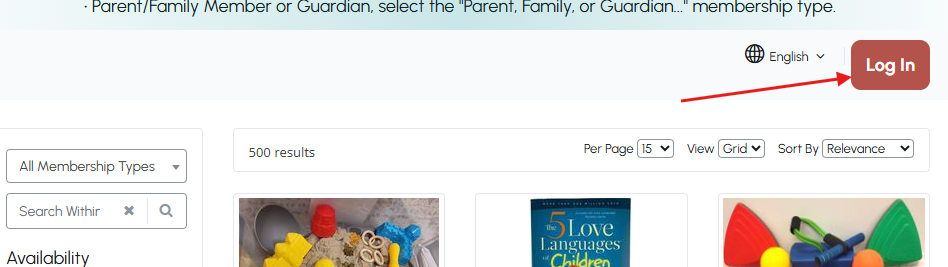
1. Log into the Lending Library.
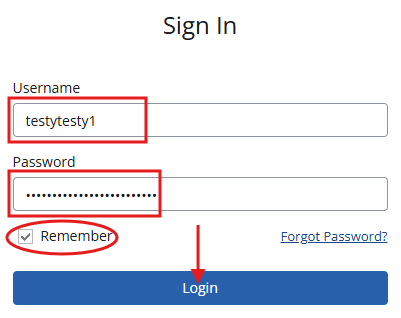
2. Enter your username and password provided to you by the CCRR.
• Feel free to check the “Remember” checkbox for easy sign-in next time 🙂
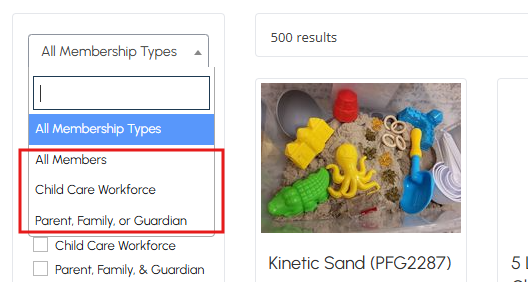
3. Select whether you are in the Child Care Workforce or a Parent/Family/Guardian from the membership types. Items such as book bags (and a few other items) are available to both the Child Care Workforce and to families; select “All Members” to view these items.
Alternatively, simply keeping the membership type set to “All Membership Types” and then selecting the “Child Care Workforce” or “Parent, Family, & Guardian” in the category section will display all items available to your membership type.
• This will filter through the options that are available to you.
• Select any other categories that may interest you.
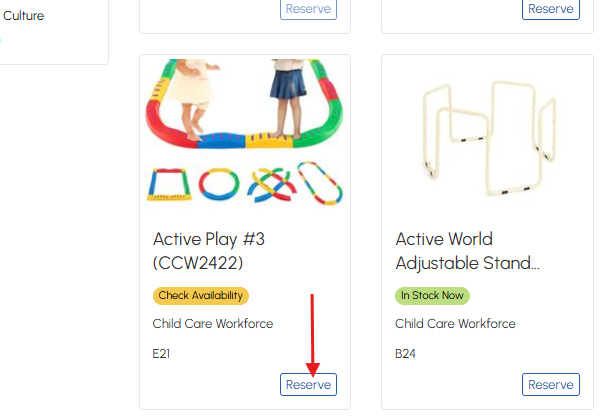
4. When you see an item you wish to reserve, click on the “Reserve” button.
• You can also click on the image to see additional details on the selected item.
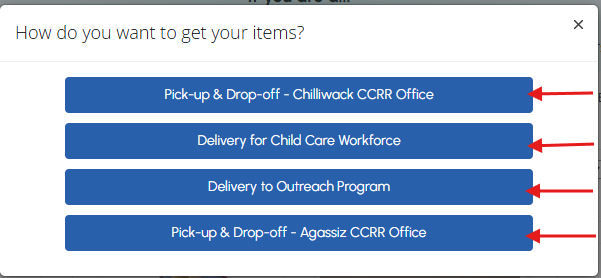
5. Once you click the “Reserve” button, a box will pop up with fulfillment options. These options may include:
• Pick-up from the Chilliwack CCRR Office on School Street.
• Pick-up from the Agassiz CCRR Office in the Kent Community Recreation & Cultural Centre.
• Delivery to an Outreach program, such as Mother Goose – available to families only.
• Delivery to a Child Care Facility – available to the Child Care Workforce only at the beginning of the month with pick-up about 3-weeks later.*
* Delivery to a Child Care Facility is only offered to orders including bins. Book bag only orders are pick-up only.
6. Select the date you wish to reserve your item for.
• For deliveries only, select the appropriate “Deliver To” option – this should be your Primary address.
• The “Deliver To” option will not show if pickup is selected from the Chilliwack or Agassiz CCRR offices.
7. Click on Add Items.
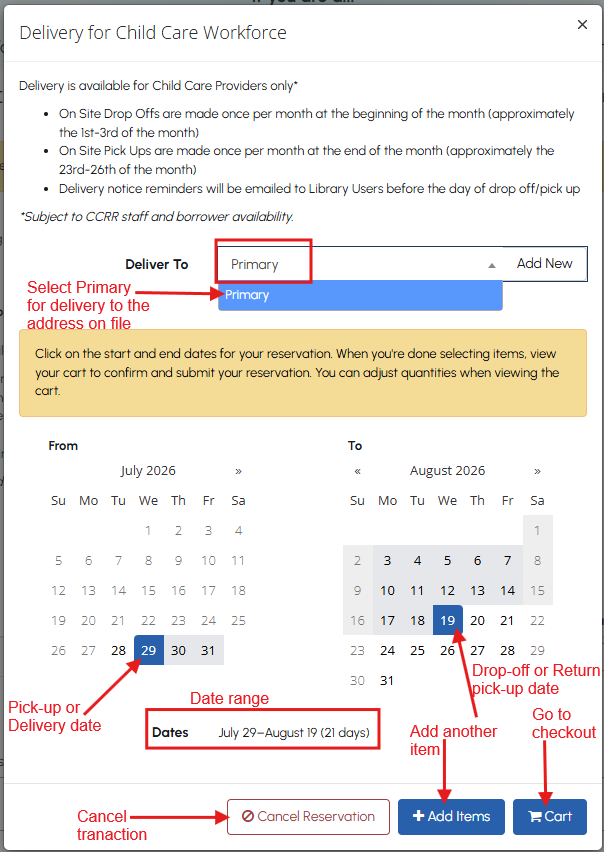
8. To begin checking out, click on the cart near the top of the page.

9. After clicking on the cart, a small box will appear. Click on the “Cart” option to go to the cart.
• Alternatively, you can also cancel the reservation from here.

10. Confirm ALL information is correct and then click on “Submit Reservation” at the bottom of the page.
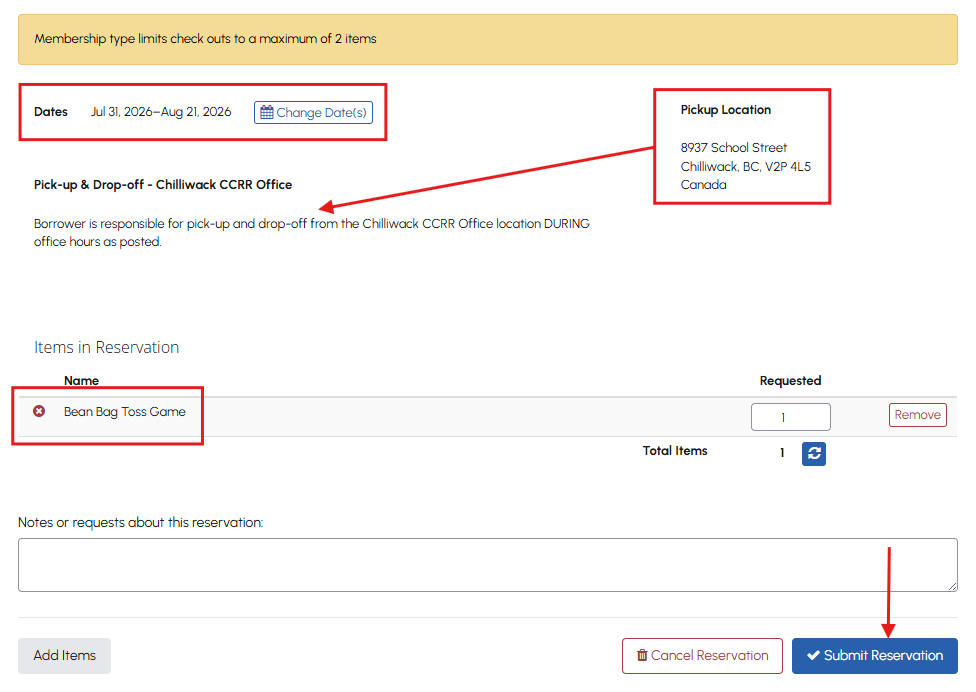
11. After confirming and submitting your reservation, a reservation history is displayed. No actions are needed.

12. Check your email (that is associated with your account) for a copy of your reservation request.
